

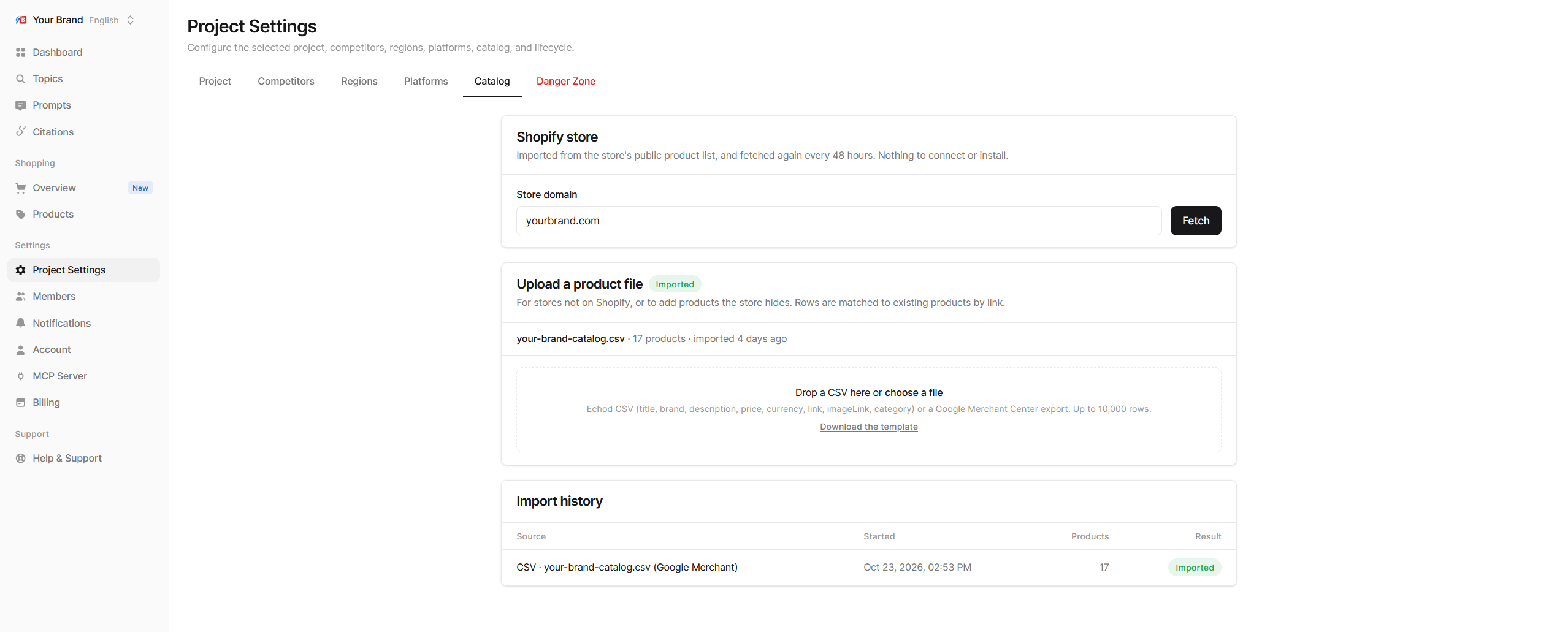
Import from a Shopify store
If you sell on Shopify, Echod can read your store’s public product list. There is nothing to install or connect.- In Shopify store, enter your store’s domain.
- Click Fetch.
The store must be publicly reachable. A password-protected store cannot be imported.
Upload a product file
For any other platform, upload a file under Upload a product file. Two formats are accepted:- Echod CSV with the columns
title,brand,description,price,currency,link,imageLinkandcategory - A Google Merchant Center product export
Import history
Every import is listed under Import history with its source, start time, number of products and result:Tips
- Use the names shoppers see. Product titles in your catalog should match the names on your product pages and at merchants, since AI platforms pick names up from there.
- Keep categories tidy. The categories in your catalog drive the category tree on the Products page.
- Re-upload after big changes. If you maintain the catalog by file, upload a fresh export when you add or rename products.